How Cabintale decides which dates are bookable, and at what price — set up per property or per service.
By the end of this guide, you'll understand the shared availability model that powers both places and services: seasons, weights, the General season, the rolling end date, and the rule that "0 means unavailable." From there, you'll know which deeper guide to follow for your case.
What you'll need
- A property under Your setup → Places, or a service under Services
- ~5 minutes for the concepts; budget more time for the setup itself
- A clear mental model of how availability and pricing combine
- Knowing where the Availability section lives on each detail page
- Confidence picking the right end-date rule and season weights
Place vs. Service: same model, different unit
Both places and services share the same building blocks — only the unit changes:
| Place | Service | |
|---|---|---|
| What guests pick | A check-in / check-out date range | A specific time slot on a date |
| Unit of availability | A night (one weekday cell) | A time slot (start time + duration) |
| Where it's set | Place detail → Availability & Pricing tab | Service detail → Availability section |
| Setup guide | Seasonal pricing | Time-slot calendar |
If you're setting up a cabin or hotel room, follow the seasonal pricing guide. If you're setting up a tour, table, or session at fixed times, follow the time-slot calendar guide. The rest of this page explains the shared concepts both guides assume.
Seasons: how Cabintale layers availability over time
A season is a date range plus a configuration that applies inside it. Configuration means:
- For places — a Mon–Sun grid of nightly prices.
- For services — a Mon–Sun grid of bookable time slots.
Every place and service starts with one mandatory General season — your year-round baseline. You then add override seasons (Summer, Christmas, Off-season) to change rates or schedules during specific date ranges.
You can't delete the General season. You can edit its end date, pricing, or weekly slots.
Weight: which season wins when ranges overlap
Each season has a weight (an integer). When two seasons cover the same date, higher weight wins.
- General season is always weight
0. - New override seasons default to one above the highest existing weight (
1,2,3…). - Bump the weight up if you need a season to override another override (e.g., a "Christmas week" inside "Winter").
Weights only matter where date ranges overlap. Non-overlapping seasons all behave independently.
The 0-means-unavailable rule
This rule is the same in both places and services:
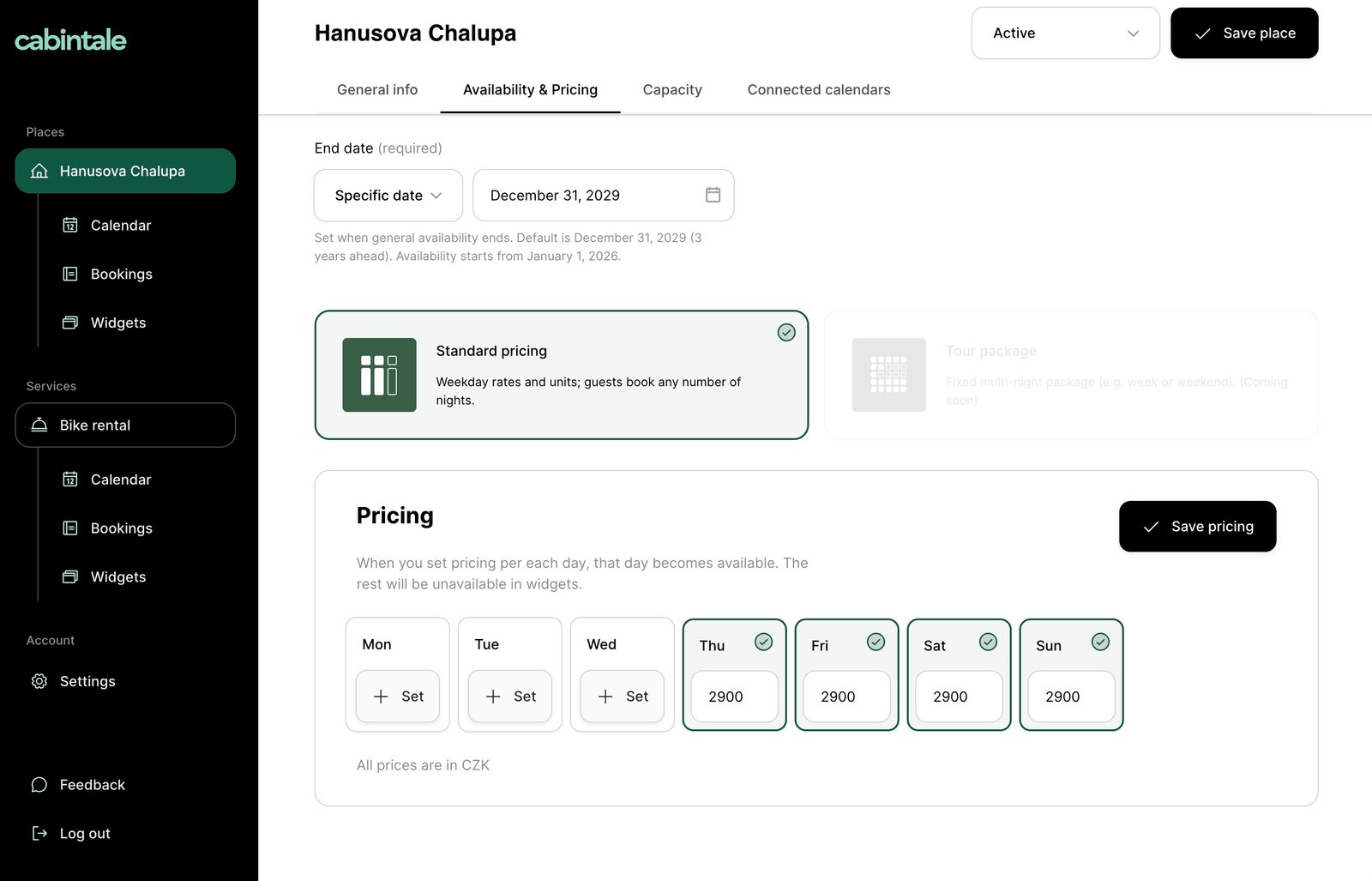
- Place — a weekday with price
0is unavailable in the public widget for that season's dates. So leaving Monday at0blocks Monday-night bookings during that season. - Service — a weekday with no slot defined is unavailable. Defining a slot makes it bookable; deleting it removes availability.
There's no separate "block this day" toggle. Pricing is availability for places; slot definitions are availability for services.
End date and rolling rules
Every season — including General — has an end date. You can set it as a specific date, or pick a rolling rule that updates itself each time the page loads:
- End of current month / End of next month — handy for short-horizon properties.
- 30 days, 60 days, 90 days — a sliding window from today.
- Custom days from today — you choose the number.
When a rolling rule is active, helper text reads "Currently until [date] based on this rule" so you can see exactly how far ahead guests can book right now.
The General season default is December 31, three years out — fine to leave alone if you don't want to deal with rollover rules.
Where to set this up
Places. Sidebar → Places → choose a property → open Availability & Pricing. You'll see the General season tab and a New season button. Full walkthrough: Seasonal pricing.
Services. Sidebar → Services → choose a service → scroll to Availability. You'll see the season tabs and a week grid for time slots. Full walkthrough: Time-slot calendar.
How guests see it
Cabintale resolves availability per date by picking the highest-weight season covering that date, then applying its configuration.
- For a multi-night stay, the place widget calculates the total night-by-night, applying whichever season covers each night. A stay that spans a season boundary sees the per-night rates blended automatically.
- For a service, the widget shows the slots defined for the date the guest picked, in the season that covers it.
Guests don't see season names, weights, or the General/override distinction — only their available dates and total price.
Related concepts
- Booking deadline — how close to check-in (places) or slot start (services) guests can still book. See Booking deadline.
- Availability window — how far in the future bookings open. See Availability window.
- Time zone — all season dates and slot start times are interpreted in the property/service time zone. Set it correctly in Property basics.
Troubleshooting
| Symptom | Cause | Fix |
|---|---|---|
| Guests are charged the General rate inside a season window | Season's date range doesn't cover the booking, or the override has weight 0 | Edit the season — confirm dates include the booking and weight ≥ 1 |
| A weekday or slot shows as unavailable | Price is 0 (place) or no slot defined (service) for that weekday in the active season | Set a positive price, or add a slot for that weekday |
| Two overlapping seasons — the wrong one is showing | Visible season has the lower weight | Bump the weight on the season you want to win, or split the ranges so they don't collide |
| End date keeps reverting | A rolling rule is active — it recalculates each load and ignores typed dates | Switch the dropdown to Specific date to pin a fixed date |
| "Cannot delete the general season." | The General season is mandatory per place/service | You can't remove it — edit its config instead. Only override seasons (weight ≥ 1) can be deleted |
Related guides
- Seasonal pricing (places) — Seasonal pricing
- Time-slot calendar (services) — Time-slot calendar
- Availability window — Availability window
- Booking deadline — Booking deadline
- Property basics — Property basics