Jak Cabintale rozhoduje, které dny jsou rezervovatelné a za jakou cenu — nastavení pro každé místo nebo službu.
Po dokončení tohoto návodu pochopíte sdílený model dostupnosti, který pohání jak místa, tak služby: sezóny, váhy, Obecnou sezónu, klouzavé datum konce a pravidlo, že „0 znamená nedostupné". Pak budete vědět, který detailní návod sledovat dál.
Co budete potřebovat
- Nemovitost v sekci Vaše nastavení → Místa, nebo službu v Služby
- ~5 minut na koncepty; na samotné nastavení počítejte víc
- Jasný model toho, jak se dostupnost a ceny kombinují
- Vědomí, kde najdete sekci Dostupnost na každé detailové stránce
- Jistotu při výběru správného pravidla pro datum konce a vah sezón
Místo vs. služba: stejný model, jiná jednotka
Místa i služby sdílejí stejné stavební kameny — mění se jen jednotka:
| Místo | Služba | |
|---|---|---|
| Co host vybírá | Rozsah dat příjezd / odjezd | Konkrétní časový slot na konkrétní den |
| Jednotka dostupnosti | Noc (jedna buňka v týdnu) | Časový slot (čas začátku + délka) |
| Kde se to nastavuje | Detail místa → záložka Dostupnost a ceny | Detail služby → sekce Dostupnost |
| Návod k nastavení | Sezónní ceny | Kalendář časových slotů |
Pokud nastavujete chatu nebo hotelový pokoj, jděte na návod k sezónním cenám. Pokud nastavujete prohlídku, stůl nebo lekci v pevných časech, jděte na návod ke kalendáři časových slotů. Zbytek téhle stránky vysvětluje sdílené koncepty, které oba návody předpokládají.
Sezóny: jak Cabintale vrství dostupnost v čase
Sezóna je rozsah dat plus konfigurace, která v něm platí. Konfigurací se myslí:
- U míst — mřížka Po–Ne s nočními cenami.
- U služeb — mřížka Po–Ne s rezervovatelnými časovými sloty.
Každé místo a každá služba začíná s jednou povinnou Obecnou sezónou — váš celoroční základ. Pak přidáváte přepisovací sezóny (Léto, Vánoce, Mimosezóna), které mění sazby nebo rozvrh pro konkrétní rozsahy dat.
Obecnou sezónu nelze smazat. Můžete upravit její datum konce, ceny nebo týdenní sloty.
Váha: která sezóna vyhraje, když se rozsahy překrývají
Každá sezóna má váhu (celé číslo). Když dvě sezóny pokrývají stejný den, vyhrává vyšší váha.
- Obecná sezóna má vždy váhu
0. - Nové přepisovací sezóny mají výchozí váhu o jedna vyšší než nejvyšší existující (
1,2,3…). - Zvyšte váhu, pokud potřebujete, aby jedna přepisovací sezóna přepsala druhou (např. „Vánoční týden" uvnitř „Zimy").
Váhy hrají roli jen tam, kde se rozsahy dat překrývají. Nepřekrývající se sezóny fungují nezávisle.
Pravidlo „0 znamená nedostupné"
Stejné pravidlo platí v místech i službách:
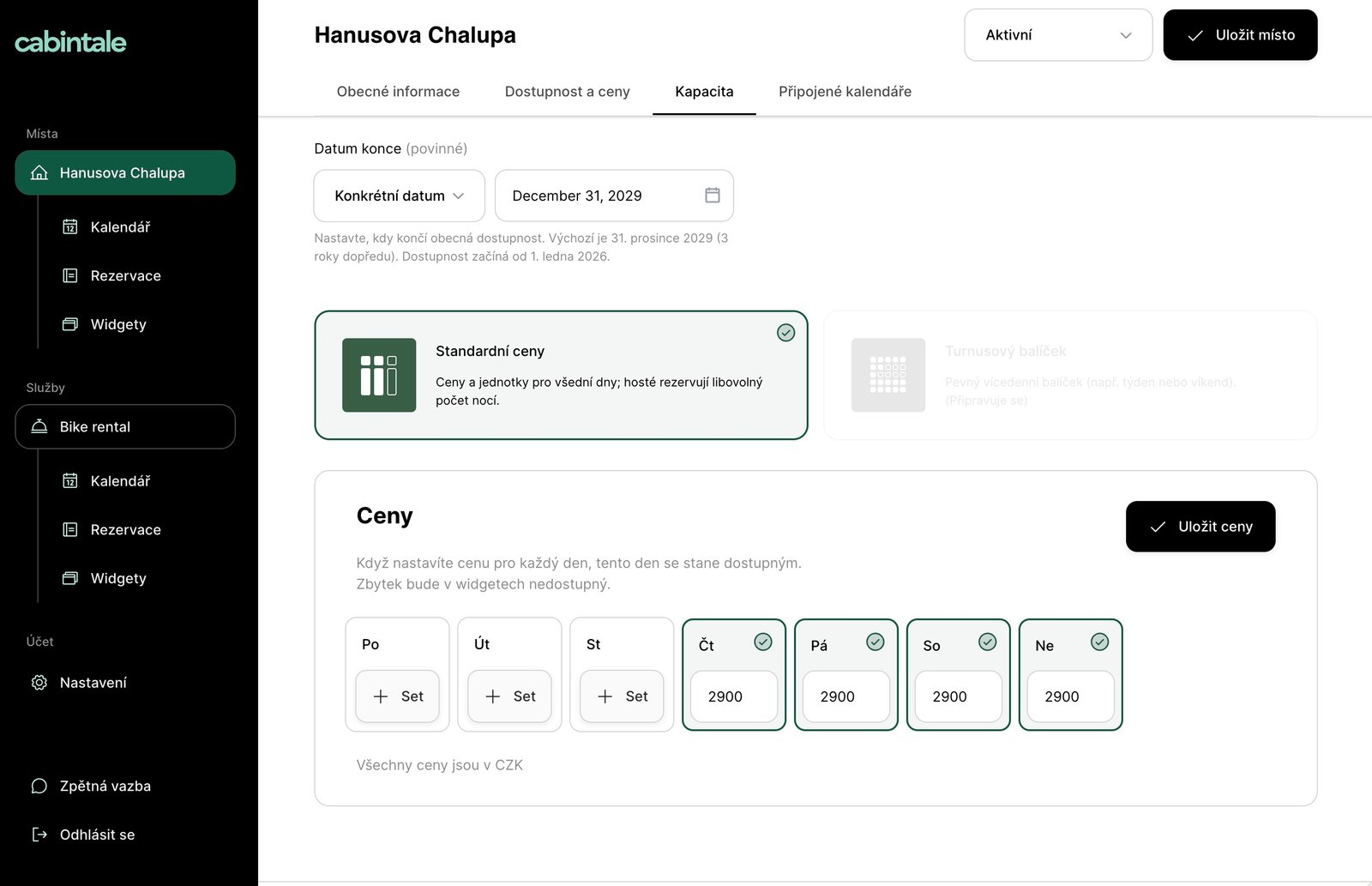
- Místo — den v týdnu s cenou
0je v období té sezóny ve veřejném widgetu nedostupný. Když necháte pondělí na0, blokujete pondělní noci po dobu té sezóny. - Služba — den v týdnu bez definovaného slotu je nedostupný. Definováním slotu se den stane rezervovatelným; smazáním slotu zase mizí.
Žádný samostatný přepínač „zablokovat tento den" neexistuje. U míst je cena dostupností; u služeb jsou definice slotů dostupností.
Datum konce a klouzavá pravidla
Každá sezóna — včetně Obecné — má datum konce. Můžete ho nastavit jako konkrétní datum, nebo zvolit klouzavé pravidlo, které se aktualizuje při každém načtení stránky:
- Konec aktuálního měsíce / Konec příštího měsíce — hodí se pro krátkodobé plány.
- 30 dní, 60 dní, 90 dní — klouzavé okno od dnešního dne.
- Vlastní počet dní od dneška — vyberete si počet sami.
Když je aktivní klouzavé pravidlo, nápověda píše „Aktuálně do [datum] podle tohoto pravidla", takže přesně vidíte, jak daleko hosté právě teď můžou rezervovat.
Výchozí hodnota Obecné sezóny je 31. prosince za tři roky — klidně nechte tak, pokud se s pravidly přechodu nechcete trápit.
Kde to nastavit
Místa. Postranní nabídka → Místa → vyberte nemovitost → otevřete Dostupnost a ceny. Uvidíte záložku Obecné sezóny a tlačítko Nová sezóna. Plný návod: Sezónní ceny.
Služby. Postranní nabídka → Služby → vyberte službu → sjeďte na Dostupnost. Uvidíte záložky sezón a týdenní mřížku pro časové sloty. Plný návod: Kalendář časových slotů.
Co vidí host
Cabintale řeší dostupnost pro každý den tak, že vybere sezónu s nejvyšší vahou, která daný den pokrývá, a aplikuje její konfiguraci.
- U vícenočního pobytu widget místa spočítá celkovou cenu noc po noci, podle toho, která sezóna noc pokrývá. Pobyt přes hranici sezón uvidí jednotlivé noční sazby automaticky smíchané.
- U služby widget zobrazí sloty definované pro datum, které host vybral, v sezóně, která ho pokrývá.
Host nevidí jména sezón, váhy ani rozdíl Obecná/přepisovací — vidí jen volné dny a celkovou cenu.
Související koncepty
- Termín pro rezervaci — jak blízko k příjezdu (místa) nebo začátku slotu (služby) může host ještě rezervovat. Viz Termín pro rezervaci.
- Rezervační okno — jak daleko do budoucna jsou rezervace otevřené. Viz Rezervační okno.
- Časové pásmo — všechna data sezón a časy začátků slotů jsou v časovém pásmu místa/služby. Nastavte ho správně v Základní informace.
Řešení problémů
| Příznak | Příčina | Řešení |
|---|---|---|
| Hosté jsou účtováni Obecnou sazbou uvnitř okna sezóny | Rozsah sezóny rezervaci nepokrývá, nebo má přepis váhu 0 | Upravte sezónu — ověřte, že data zahrnují rezervaci a váha je ≥ 1 |
| Den v týdnu nebo slot se zobrazuje jako nedostupný | V aktivní sezóně je cena 0 (místo) nebo není definován slot (služba) pro ten den | Nastavte kladnou cenu, nebo přidejte slot pro daný den |
| Dvě překrývající se sezóny — zobrazuje se ta špatná | Viditelná sezóna má nižší váhu | Zvyšte váhu sezóně, kterou chcete vidět vyhrávat, nebo rozdělte rozsahy, aby se nepřekrývaly |
| Datum konce se pořád vrací | Je aktivní klouzavé pravidlo — počítá se znovu při každém načtení a ignoruje napsaná data | Přepněte v rozbalovacím menu na Konkrétní datum a zafixujte pevné datum |
| „Obecnou sezónu nelze smazat." | Obecná sezóna je u každého místa/služby povinná | Smazat ji nelze — upravte její konfiguraci. Smazat lze jen přepisovací sezóny (váha ≥ 1) |
Související návody
- Sezónní ceny (místa) — Sezónní ceny
- Kalendář časových slotů (služby) — Kalendář časových slotů
- Rezervační okno — Rezervační okno
- Termín pro rezervaci — Termín pro rezervaci
- Základní informace o nemovitosti — Základní informace